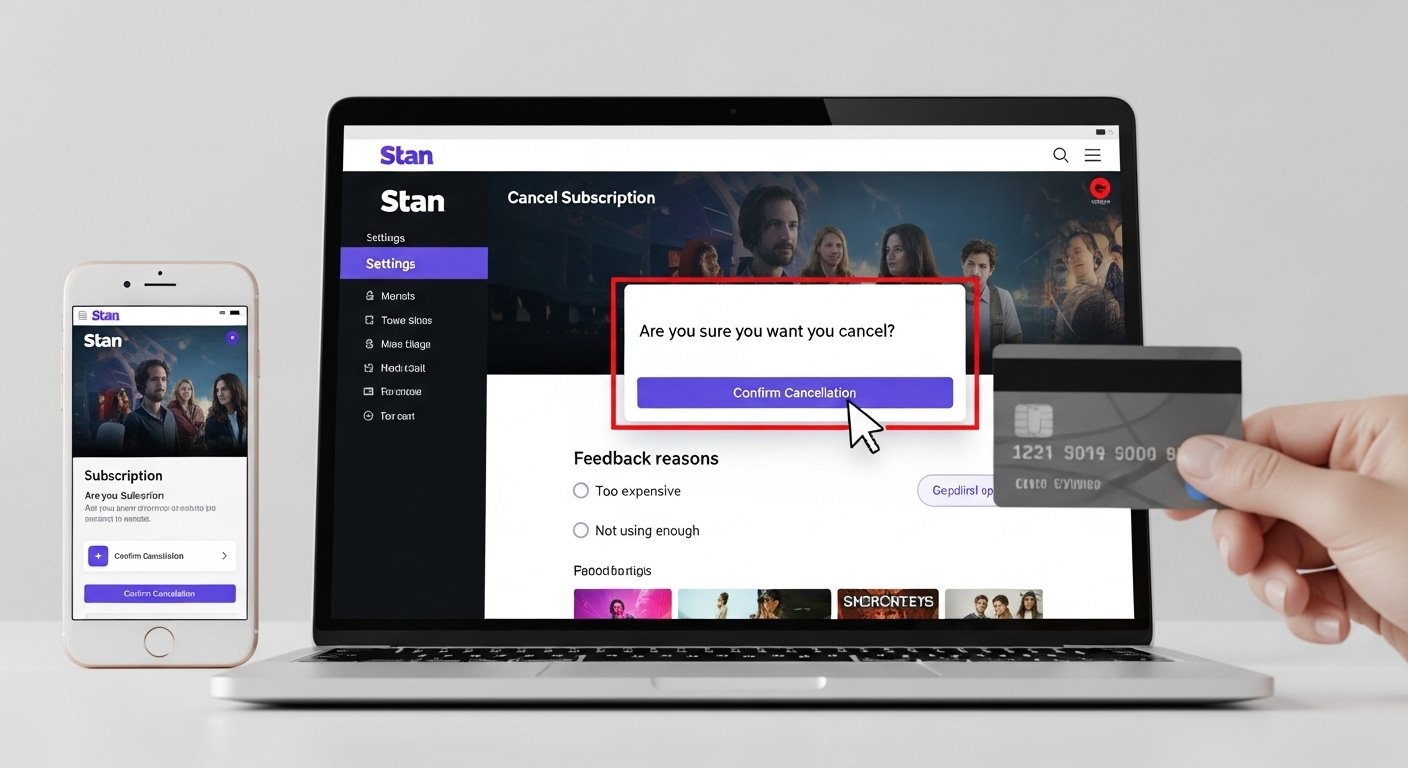
Look, if you’re here, you’ve probably already made up your mind. Maybe you binged everything worth watching, maybe the price went up, or maybe you just forgot you were still paying for it. Whatever the reason, figuring out how to cancel Stan subscription shouldn’t take more than a few minutes. Here’s how to get it done — on your phone, computer, or through a third party — without any confusion.
What is Stan exactly? Stan is an Australian streaming service that offers movies, TV series, documentaries, and Stan Originals. It competes with Netflix, Binge, and Disney+ in the Australian market. Plans start from a basic tier and go up depending on screen quality and how many devices you want streaming at once.
Is keeping Stan worth it? Depends entirely on what you watch. If you’re into specific Stan Originals or you rely on it for certain content libraries, then sure. But if you haven’t opened the app in three weeks and you’re still getting charged — probably time to let it go.
How does cancellation actually work? You cancel through your account settings on the Stan website or app. Once cancelled, you keep access until the end of your current billing cycle. No partial refunds. No prorated amounts. You just ride out what you’ve already paid for.
How to Cancel Stan Subscription Step by Step
Let’s get straight to it. The process is different depending on how you originally signed up, and that’s where most people get tripped up. If you signed up directly through the Stan website or the Stan app, cancellation happens inside your account settings. Log in, head to “My Account,” and you’ll see a “Cancel Subscription” option under your plan details. Click it, confirm, and you’re done. Takes about sixty seconds if the page loads properly.
But here’s the thing — if you signed up through Apple (via the App Store) or through Google Play, Stan can’t cancel it for you. You have to go through your Apple ID or Google Play subscription settings instead. This catches a lot of people off guard. They contact Stan support asking why there’s no cancel button, and the answer is always the same: you subscribed through a third party, so that’s where the cancellation lives. Same goes for anyone who subscribed via their Telstra TV bundle or a similar deal. The cancellation path follows wherever the billing relationship sits. It’s not complicated once you know where to look, but it’s annoying if you don’t.
How to Cancel Stan Subscription on Phone
This is the one people search for most, and fair enough — most of us manage everything from our phones now. If you’re on an iPhone, open the Settings app, tap your name at the top, then go to Subscriptions. You’ll see Stan listed there if you subscribed through Apple. Tap it, hit Cancel Subscription, and confirm. Done.
On Android, open the Google Play Store app, tap your profile icon, then go to Payments & Subscriptions, then Subscriptions. Find Stan, tap it, and cancel from there. Again, this only applies if you originally subscribed through Google Play. If you went directly through Stan’s website, you’ll need to open a browser on your phone, log in to your Stan account at stan.com.au, navigate to My Account, and cancel from there. The mobile browser version works fine — it’s not the smoothest experience on a small screen, but it gets the job done. Just make sure you’re logged into the right account if you share devices with a partner or family member. Cancelling the wrong profile is a mistake that happens more often than you’d think.
What Happens After You Cancel Your Stan Account
So you’ve hit the cancel button. Now what? First thing — don’t panic if you still see Stan working. Your access continues until the end of your current billing period. If you paid on the 5th of the month, you’ll have access until the 5th of the next month. Stan doesn’t cut you off the moment you cancel. That’s actually one of the better things about their policy compared to some other services that get weird about it.
Your profiles, watchlist, and viewing history stay saved for a period of time after cancellation. So if you decide to come back in a couple of months, you won’t be starting from scratch. Stan holds onto that data for a while, though they don’t publicly say exactly how long. One thing to be aware of — if you’re on a free trial and you cancel before the trial ends, you lose access immediately on some plans. That’s different from a paid subscription where you keep watching until the billing cycle finishes. Worth checking which situation applies to you before you pull the trigger.
Stan Cancel Subscription Through Apple or Google
This deserves its own section because it causes so much confusion. When you subscribe to Stan through the App Store or Google Play, Apple or Google handles the billing. Stan literally cannot see or manage that subscription on their end. So even if you email Stan support and ask them to cancel it, they’ll just redirect you back to Apple or Google.
For Apple users, the path is Settings > Your Name > Subscriptions > Stan > Cancel. For Google, it’s Play Store > Profile > Payments & Subscriptions > Subscriptions > Stan > Cancel. If you can’t find Stan in either of those places, it means you probably subscribed directly through Stan’s website — so head there instead. One important note: deleting the Stan app from your phone does NOT cancel your subscription. This is a huge one. People uninstall the app thinking they’ve cancelled, and then three months later they notice charges still coming out. The app and the subscription are two completely separate things. Always cancel through account settings or your app store subscription management. Always.
Common Mistakes When Trying to Cancel Stan
The biggest one we already covered — deleting the app and assuming you’re done. But there are a few others that trip people up. Some users have multiple Stan accounts tied to different email addresses and cancel the wrong one. If you’re not sure which email your billing is under, check your bank statement for the charge and match it with the email you used to sign up.
Another mistake is waiting until the last day of your billing cycle to cancel and then forgetting. If you know you want to leave, just do it now. You still keep access until the cycle ends, so there’s zero benefit to waiting. Some people also assume they’ll get a refund for unused days. Stan’s policy is pretty clear — no refunds on unused portions of a billing period. It’s the same across most streaming platforms in Australia, to be fair. Not unique to Stan. And finally, people sometimes confuse pausing with cancelling. Stan has offered pause options in the past, which lets you temporarily stop your subscription without fully cancelling. If you want to completely end it, make sure you’re selecting “Cancel” and not “Pause.” They’re different actions with different outcomes.
Stan Subscription Plans and What You’re Paying For
Before you cancel, it’s worth knowing exactly what plan you’re on — especially if you’re thinking about downgrading instead of leaving altogether.
| Plan | Monthly Cost (AUD) | Screens | Video Quality | Downloads |
| Stan Basic | $12 | 1 | SD | Yes |
| Stan Standard | $16 | 3 | HD | Yes |
| Stan Premium | $22 | 4 | 4K UHD | Yes |
If the cost is your main issue, dropping from Premium to Basic might be enough to keep things manageable. You lose the 4K streaming and the extra screens, but you still get access to the full content library. That’s something a lot of people don’t realise — the content doesn’t change between plans. Only the quality and number of simultaneous streams differ. So if you were paying for Premium just because you thought it had more shows, it doesn’t. Might save yourself ten bucks a month and still keep watching.
Stan vs Other Streaming Services in Australia
If you’re cancelling because you feel like you’re paying for too many services, you’re definitely not alone. The average Australian household now subscribes to three or four streaming platforms. That adds up quickly. Here’s a rough comparison of where Stan sits against the main competitors.
| Service | Starting Price (AUD) | Key Strength |
| Stan | $12/month | Stan Originals, Paramount+ bundle option |
| Netflix | $7.99/month (with ads) | Largest global library |
| Binge | $10/month | HBO and Warner Bros content |
| Disney+ | $13.99/month | Marvel, Star Wars, family content |
| Paramount+ | $6.99/month | Often bundled with Stan |
Stan’s strength has always been its local originals and its deal with Paramount+. If you’re into HBO-style content, Binge might be a better fit. If you want the biggest variety, Netflix still wins on sheer volume even though the quality is inconsistent. But if none of them are doing it for you right now — cancelling everything for a few months and coming back later is honestly a perfectly fine move. These services aren’t going anywhere.
That’s basically it. Cancelling Stan is straightforward once you know where your billing sits — directly with Stan, through Apple, or through Google. Don’t overthink it. And if you ever want to come back, resubscribing takes about thirty seconds.
Frequently Asked Questions
How do I cancel my Stan subscription if I forgot my password? Head to the Stan login page and tap “Forgot Password.” They’ll send a reset link to the email associated with your account. Once you’re back in, go to My Account and cancel from there. If you can’t access the email either, you’ll need to contact Stan support directly to sort it out.
Will I lose my watchlist and profiles after cancelling Stan? Not immediately. Stan keeps your data for a period after cancellation, so if you resubscribe later, your profiles and watchlist should still be there. However, they don’t guarantee how long that data is stored, so there’s a chance it could be wiped if you wait too long to come back.
Can I get a refund after cancelling my Stan subscription? Stan’s standard policy is no refunds for unused portions of a billing period. Once you cancel, you keep access until the current cycle ends, but you won’t get money back for days you didn’t use. In rare cases involving billing errors, contacting their support team might help, but don’t count on a standard refund.
Does cancelling Stan also cancel Paramount+ if I have the bundle? Yes — if you subscribed to Paramount+ through the Stan bundle, cancelling Stan cancels both. If you want to keep Paramount+ separately, you’d need to sign up for it independently through their own website or app before cancelling Stan.
How do I cancel Stan if I subscribed through Telstra? If Stan was part of a Telstra bundle or promotion, you’ll need to manage cancellation through your Telstra account — not through Stan directly. Log into your Telstra account or contact Telstra support to remove Stan from your plan. Stan’s own cancel button won’t appear if Telstra handles the billing.