


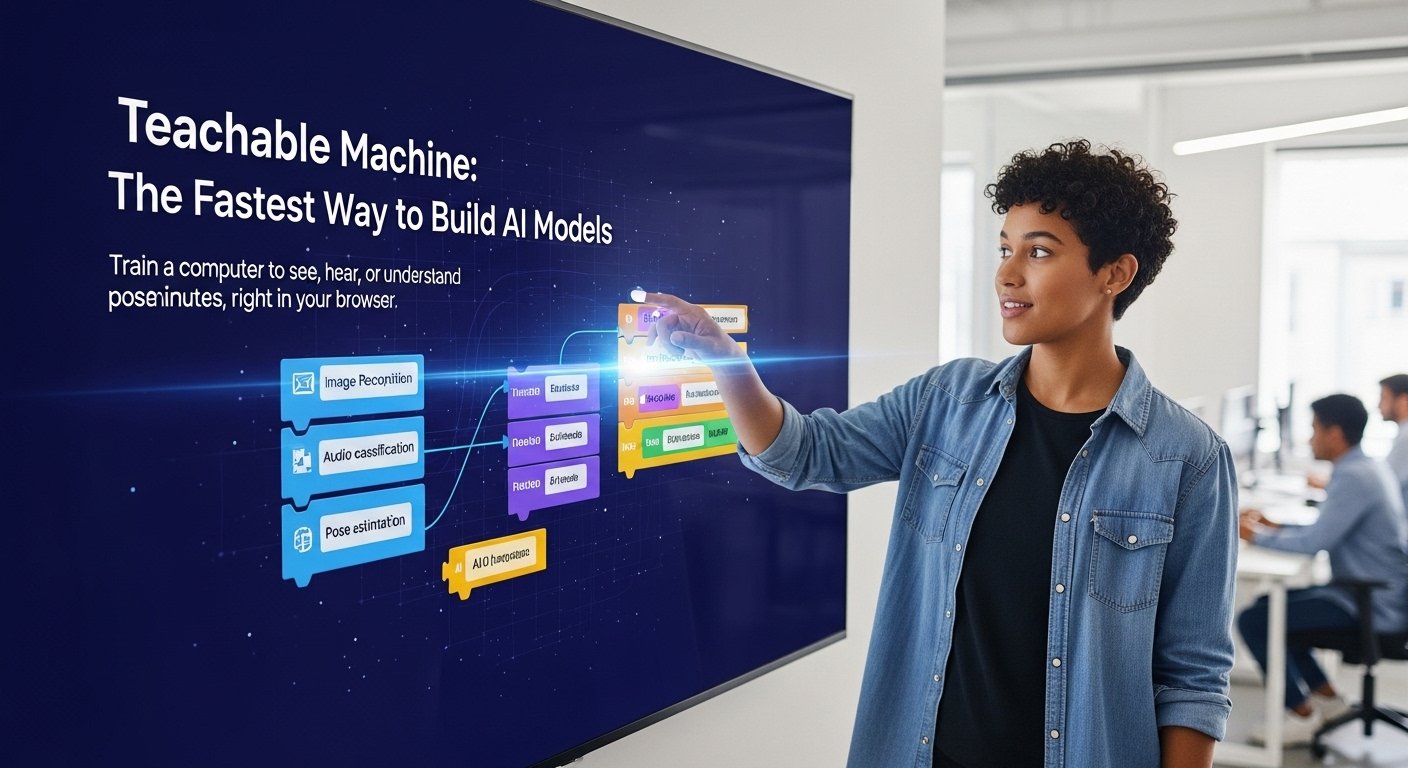

You don’t need a PhD. You don’t need a data science background. Google’s Teachable Machine lets you build a working machine learning model in your browser — drag in some images, hit train, done. It sounds too easy, but honestly? It kind of is. And that’s exactly the point.
| Question | Short Answer |
| What is Teachable Machine? | A free, browser-based tool by Google that lets anyone train custom ML models without code. |
| Is it worth using for real projects? | Absolutely — educators, designers, and small devs use it regularly. Has real export options too. |
| How does it work? | You upload examples, it trains on them in real time, then you can export the model or embed it. |
How Google’s Teachable Machine Actually Works
At its core, Teachable Machine uses transfer learning. That’s a fancy phrase for something pretty practical — instead of building a model from scratch, it takes a pre-trained neural network (usually MobileNet for images) and fine-tunes it based on your own examples. If you want a solid grounding in how this fits into the bigger picture, this overview of machine learning is worth a read before you dive in. So when you show it 30 photos of your cat and 30 photos of your dog, it’s not starting from zero. It’s borrowing knowledge from a model that already understands shapes, textures, edges — and just learning the last bit.
The whole process runs inside your browser. No server uploads, no waiting. You open the site, pick a project type — image, audio, or pose — and start feeding it data. You can use your webcam in real time or upload files. Once you hit ‘Train Model,’ it runs locally using TensorFlow.js. The feedback is instant. Within seconds, you can point your camera at something and watch it classify live.
It’s remarkably clean. There are no confusing settings unless you click into ‘Advanced,’ where you can tweak epochs, batch size, and learning rate. Most people never touch those. And honestly, for the kinds of tasks Teachable Machine is built for — recognition tasks with clear categories — the defaults work surprisingly well.
Why Educators and Designers Are Actually Using This
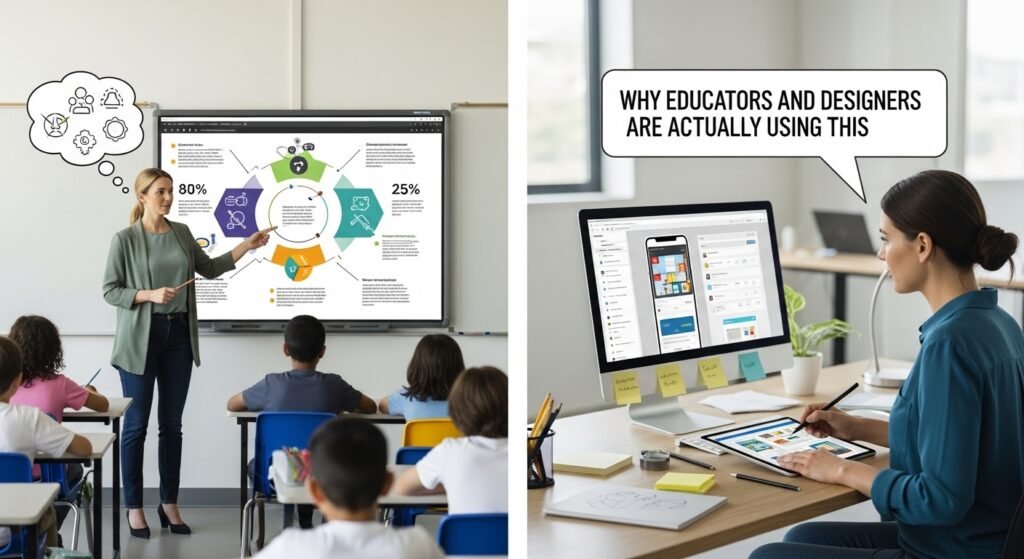
The tool got popular in schools first. Teachers were using it to explain AI without having to explain Python. You train a model that tells the difference between thumbs up and thumbs down, and suddenly students understand what training data means, what a label is, why more examples matter. That’s real learning — not just theory.
But it spread beyond classrooms. Designers started using it for interaction prototypes. Accessibility researchers built gesture-based interfaces. Artists made installations that respond to body movement. Someone on Reddit built a plant disease detector for their garden using nothing but a phone camera and Teachable Machine. It took them an afternoon.
The export options are part of what makes it genuinely useful beyond demos. You can export your model as a TensorFlow.js file for web projects, a TensorFlow Lite model for mobile apps, or a standard TensorFlow SavedModel for more serious deployment. If you’re thinking about scaling that further, it helps to understand the specialized technology resources available to developers at different stages. That covers a lot of ground. It’s not just a toy anymore once you realise you can pull that model into a real app.
Teachable Machine vs Other No-Code ML Tools
| Tool | Best For | Export Options | Learning Curve | Free Tier |
| Teachable Machine | Quick prototypes, education | TF.js, TFLite, SavedModel | Very Low | Fully Free |
| RunwayML | Creative/generative AI | Video, image outputs | Low-Medium | Limited |
| Lobe.ai | Image classification apps | TFLite, ONNX, TF | Low | Free |
| AutoML (Google Cloud) | Production ML pipelines | Cloud deployment | Medium-High | Paid (credits) |
| CreateML (Apple) | iOS/macOS apps | Core ML | Low (Mac only) | Free with Xcode |
Real Examples People Are Actually Building
Let’s get specific. Because the use cases are more interesting than ‘classify cats and dogs.’
Gesture-Based Instrument Control
Musicians and sound designers have trained models to recognise hand positions through a webcam, then wired those classifications to MIDI controls using p5.js. You raise your left hand — the reverb increases. You tilt your right — it changes pitch. None of this required writing ML code. They used Teachable Machine for the recognition layer and JavaScript libraries for the audio side. Rough around the edges? Sure. But functional enough to perform live.
Sorting Physical Objects on a Conveyor Belt
A small manufacturing hobbyist (a maker, really — home workshop type) built a simple belt sorter that could tell screws from bolts from washers. He used a Raspberry Pi, a camera, and a TFLite model he exported straight out of Teachable Machine. Trained in under an hour. Deployed the same afternoon. This kind of project is a good example of what people call quiet technologies — tools doing real work in the background without any fanfare. The accuracy wasn’t perfect — around 87% — but for sorting hardware into bins, good enough. That’s the whole vibe of this tool. Not perfect. Good enough, fast.
Sign Language Letter Recognition Prototypes
Accessibility developers have been using the pose and image classification features to prototype sign language recognition tools. None of these are production-ready. But they’re proof-of-concept fast — you can show a client or a grant committee something that actually runs in a browser within a day. That matters a lot when you’re trying to get funding or buy-in for a longer project. It’s also the kind of practical, community-focused work that applied technology centres are increasingly championing in 2026.
Mistakes People Make When Using Teachable Machine
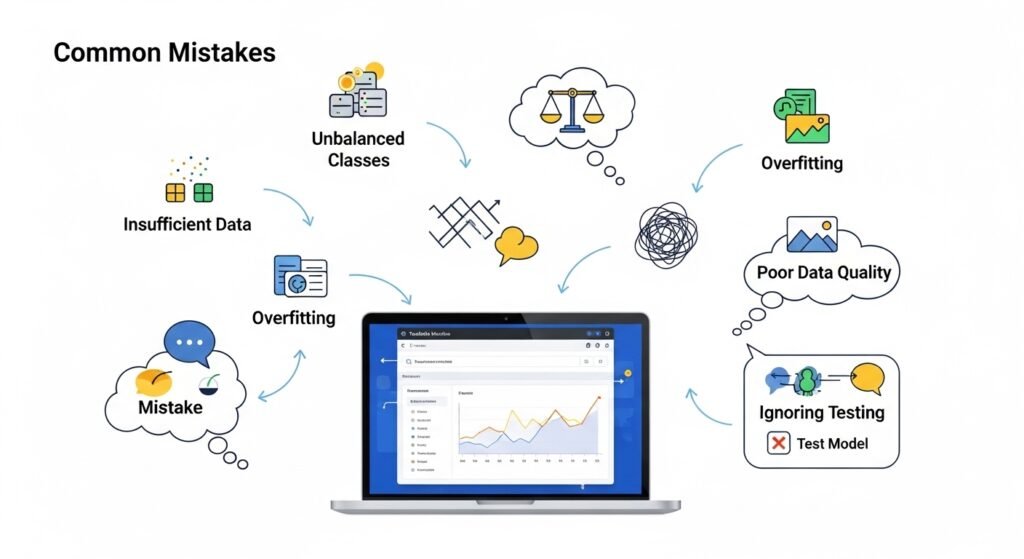
The most common one — not enough data per class. People train with 10 images per category and wonder why accuracy is terrible. The tool itself doesn’t stop you from doing this, and the training UI doesn’t warn you loudly enough. Aim for at least 50-100 varied samples per class. Different lighting, angles, backgrounds. If all your ‘apple’ photos are taken on the same white table, your model is going to struggle the moment you put a real apple on a wooden surface.
Another one: training too many classes at once. If you’re starting out, stick to two or three categories. More than five and you’re asking for a lot from a model that’s running in a browser with limited training time. It can work, but the accuracy drop is real and confusing if you don’t understand why.
People also forget about background variation. Your model learns everything in the frame, not just the object you care about. If you always hold a pen against a blue wall, and you later test it against a white wall — it might fail. Because it learned ‘blue wall + pen-ish shape = pen.’ That’s not a Teachable Machine problem specifically, it’s a classic data collection mistake. But it trips up beginners constantly.
A Quick Data Quality Checklist
| What to Check | Why It Matters |
| Varied backgrounds per class | Prevents the model from learning background instead of object |
| Consistent lighting variation | Real-world conditions differ from your desk lamp setup |
| Minimum 50+ samples per class | Below this, accuracy gets unpredictable |
| Test with unseen data | Don’t test with the same images you trained on |
| Balance classes evenly | Unequal class sizes cause bias toward the larger class |
Integrating a Teachable Machine Model Into a Real Web App
Once you’ve trained something useful, you don’t have to keep it inside the Teachable Machine interface. Export it as a TensorFlow.js model and you get a folder with a model.json file and some weight files. Drop those into your web project, reference them in your HTML, and you’re loading your own custom AI model.
The code to run inference is about 10-15 lines of JavaScript. Google provides sample snippets directly on the export screen. You load the model, set up a prediction loop, and pass in image frames from a canvas or video element. The output is an array of class probabilities — you just pick the highest one and act on it. That’s it.
Wiring it to something interactive — like changing background colours based on what the camera sees, or triggering sounds — is a front-end JavaScript task. Not a machine learning task. That’s the whole point of this tool. The ML part is done. What you do with it is your call. And if you’re thinking about how this kind of project fits into a broader tech strategy, organisations like Global Technology Associates are worth looking at for context on how small AI deployments fit into enterprise thinking.
Full FAQ — Questions People Actually Ask
1. Is Teachable Machine free to use?
Yes, completely. No account required either — though you’ll need to sign in with a Google account if you want to save your project to Google Drive. Otherwise, you can just download the model files directly. There are no paid tiers, usage limits, or hidden costs. Google built it as an educational tool and it’s stayed that way.
2. Can I use Teachable Machine models in a commercial project?
You can export and use the model in your own projects, including commercial ones. The model weights you create belong to your training data. That said, the underlying architecture (MobileNet) has its own Apache 2.0 licence, which is commercially permissive. Just don’t redistribute the Teachable Machine interface itself as your own product.
3. How accurate are Teachable Machine models for real applications?
Accuracy depends almost entirely on your data quality and task difficulty. Simple, visually distinct categories with good training data can hit 90-95% accuracy easily. Complex tasks — subtle differences between similar-looking objects, or recognition in highly variable conditions — will struggle. For demos and prototypes, the accuracy is more than adequate. For production systems handling safety-critical decisions, you’d want a more robust pipeline.
4. What’s the difference between Teachable Machine and training a model from scratch?
From scratch means building the neural network architecture, initialising weights randomly, and training on a massive dataset — we’re talking potentially millions of samples and days or weeks of GPU time. Teachable Machine uses transfer learning, starting from a model already trained on ImageNet’s 14 million images. If you’re new to all of this and want context on the fundamentals, this explainer on what artificial intelligence actually is is a good starting point. You’re only teaching the model the last classification step. Much faster, much less data needed, but also less flexible for highly specialised tasks.
5. Can Teachable Machine handle audio recognition?
Yes — that’s one of the three project types. You train it on short audio samples (recorded or uploaded). It works well for simple, distinct sounds: clapping vs snapping, spoken commands, specific environmental noises. It uses a spectrogram-based approach under the hood, converting audio to a visual frequency representation and then classifying that. Works reasonably well. Not suitable for complex speech recognition — for that you’d want something like Whisper or a dedicated ASR model.
6. Does Teachable Machine store my training data on Google’s servers?
No, by default. Training happens entirely in your browser. Your images, audio, or pose data never leave your device unless you explicitly choose to save your project to Google Drive. This is actually a big deal for privacy-conscious use cases — schools, healthcare demos, anything involving faces or personal images. The model runs locally using TensorFlow.js.
7. What are the limitations compared to proper ML platforms?
Quite a few. You’re limited to classification tasks — you can’t do object detection (bounding boxes), segmentation, or regression. The model architecture is fixed to MobileNet variants. Training dataset size has practical browser limits. You have minimal control over the model beyond the advanced hyperparameters. And the model size means it’s not going to compete with production models on complex tasks. Think of it as a prototyping and education tool, not a replacement for proper ML workflows.
8. Can I retrain a Teachable Machine model later with new data?
You can load a saved project back in and add more training examples, then retrain. It doesn’t do true incremental learning — it retrains from the same starting point each time. So if you add new images and retrain, it processes all your data again. This is fine for small datasets. For very large collections it can get slow in the browser, and at that point you’d be better off moving to a proper framework like TensorFlow or PyTorch.
So — Worth Your Time?
If you’re trying to understand machine learning for the first time, yes, absolutely, If you’re a teacher who needs to make AI tangible for students who’ve never coded, this is probably the fastest path to that. If you’re a designer or maker who wants to prototype something interactive without hiring an ML engineer, it’s a genuinely practical tool.
It won’t replace a real ML pipeline for anything serious. That’s not what it’s for. But as a first step, a proof-of-concept generator, or just a way to see what’s actually possible — it’s hard to argue against something free, fast, and that runs in your browser.
Train something weird. Point it at your houseplants. Make it recognise your coffee mug versus your water bottle. The first time it works — and it will — something clicks. That’s the real value here.