


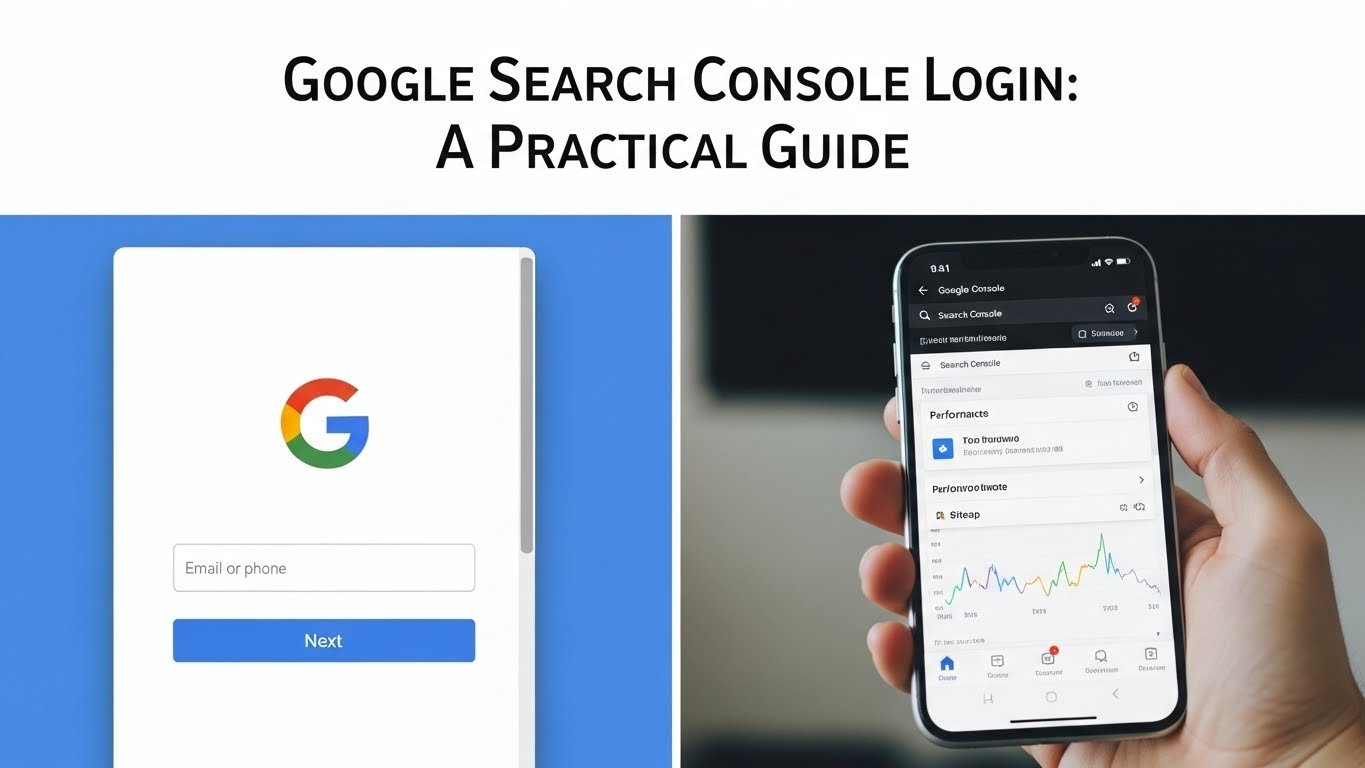

Use the official Google Search Console login page above to access your website’s search performance, indexing reports, sitemap status, URL inspection tool, and technical SEO alerts.
Google Search Console is one of the most important free tools for website owners, bloggers, SEO professionals, and small businesses. It shows how Google sees your website in search results, which queries bring impressions, which pages get clicks, and whether your important URLs are indexed properly.
If you manage a website, this is one of the first tools you should set up and check regularly.
How to Log In to Google Search Console
Follow these simple steps:
- Go to the official Google Search Console login page.
- Sign in with the Google account connected to your website.
- Choose your website property from the property list.
- Open the Performance, Pages, Sitemaps, or URL Inspection report.
- If your website is not listed, add your website and verify ownership.
If you are using Search Console for the first time, you may not see data immediately. Google needs time to collect search performance and indexing information after your website is verified.
What Is Google Search Console?
Google Search Console is a free tool from Google that helps you understand how your website performs in Google Search.
It can show you:
- Which search queries bring impressions
- Which pages receive clicks
- Your average ranking position
- Your click-through rate
- Which pages are indexed
- Which pages are not indexed
- Sitemap status
- Mobile and page experience issues
- Manual actions
- Security alerts
- URL inspection results
In simple words, Google Search Console shows what happens before someone visits your website from Google.
Google Analytics shows what users do after they land on your website. Google Search Console shows how people find your website in Google Search before they click.
Why Google Search Console Login Matters
Logging in to Google Search Console is not just about opening another SEO dashboard. It gives you direct access to real search data from Google.
This matters because third-party SEO tools usually estimate rankings, traffic, and keyword data. Google Search Console shows actual performance from your verified website.
For example, you can see:
- A page getting impressions but no clicks
- A keyword rising slowly in average position
- A page that Google crawled but did not index
- A sudden drop in impressions
- A sitemap that Google cannot read
- A title tag getting visibility but poor CTR
These details help you fix SEO problems before they become bigger traffic issues.
If you want to track SEO performance beyond Search Console, you can also compare your data with SEO reporting tools. Reporting tools help turn search data into clearer dashboards, audits, and performance reports.
New to Google Search Console? Start Here
If this is your first time using Google Search Console, you need to add and verify your website before you can see data.
Google usually gives you two main property options:
| Property Type | Best For |
|---|---|
| Domain property | Tracking the whole domain, including all versions and subdomains |
| URL-prefix property | Tracking one exact website version, such as https://example.com |
For most serious websites, a domain property is better because it gives broader visibility. A URL-prefix property can still work well if you only want to track one specific version of your site.
After choosing your property type, Google will ask you to verify ownership. This is required because Search Console contains private website data.
Common verification methods include:
- DNS record
- HTML file upload
- HTML tag
- Google Analytics
- Google Tag Manager
Once verification is complete, Google will start showing available data for your website.
Already Have a Website in Search Console?
If your website is already verified, logging in is simple.
Go to the official Google Search Console login page, sign in with the correct Google account, and choose your website property.
After logging in, check these reports first:
1. Performance
The Performance report shows clicks, impressions, CTR, average position, queries, pages, countries, and devices.
This is the report you use to understand which keywords and pages are gaining or losing visibility.
2. Pages
The Pages report shows which URLs are indexed and which are not indexed.
This is important because a page cannot rank properly if Google has not indexed it.
3. Sitemaps
The Sitemaps report shows whether Google has successfully read your sitemap.
If you publish articles regularly, sitemap monitoring is important. You can also read this guide on uploading articles for SEO to make sure new content is published with the right structure.
4. URL Inspection
The URL Inspection tool lets you check one specific URL.
You can use it to see whether Google can crawl and index a page. You can also request indexing after updating important content.
5. Manual Actions
Manual actions are rare, but serious. If Google applies a manual action, your search visibility can drop heavily.
Always check this section if your traffic drops suddenly.
Google Search Console Login Problems and Fixes
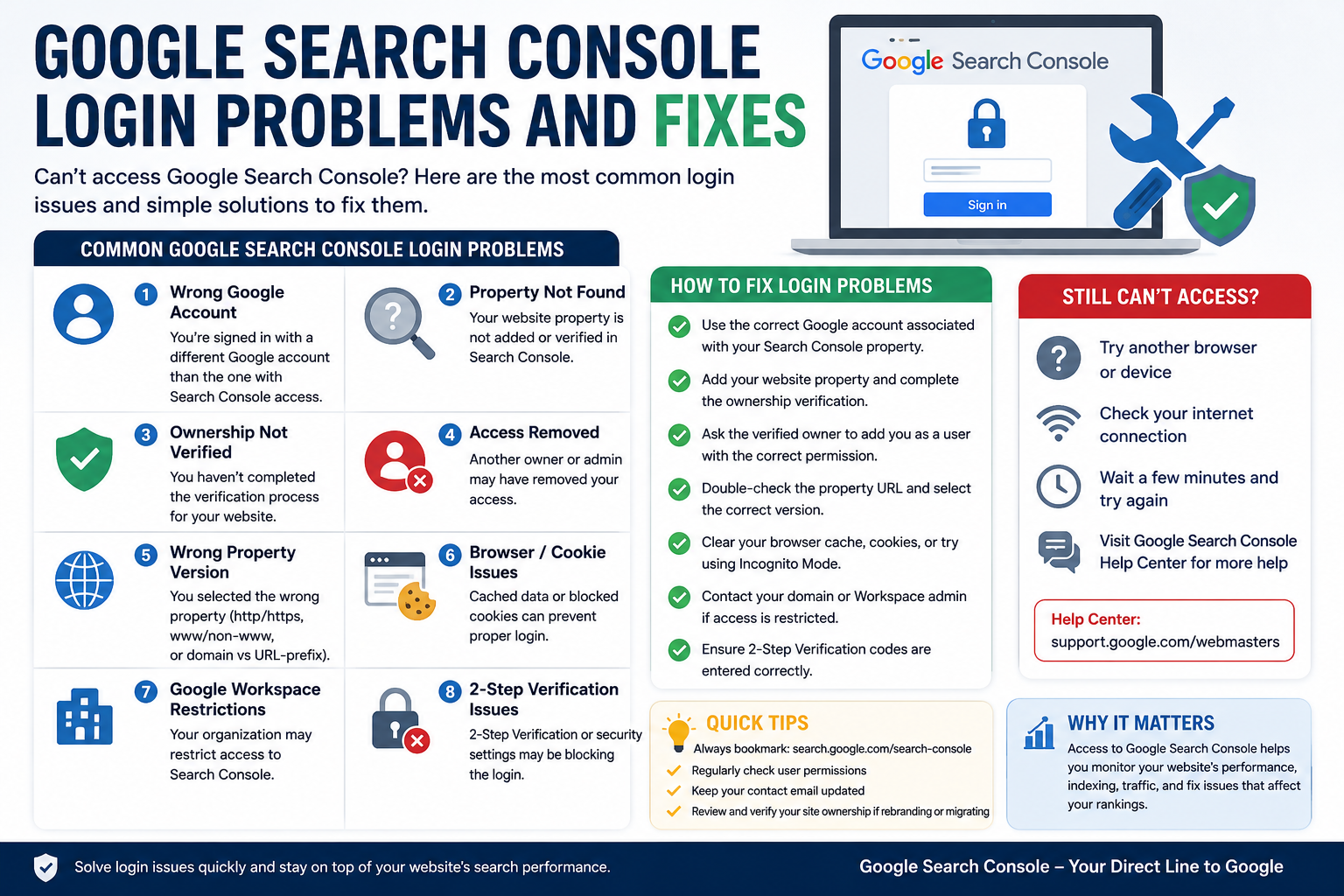
Sometimes users can reach the login page but still cannot access their website data.
Here are the most common reasons.
You Are Using the Wrong Google Account
This is the most common issue. Search Console access is connected to the Google account that was verified or invited.
Try signing out and logging in with the account originally used for website verification.
Your Website Is Not Verified
If your website does not appear after login, it may not be verified yet.
Add your property and complete one of Google’s ownership verification methods.
Someone Removed Your Access
If another owner controls the property, they may have removed your permission.
Ask the verified owner to add your email again.
You Selected the Wrong Property
Some websites have multiple versions inside Search Console, such as:
- http://example.com
- https://example.com
- https://www.example.com
- Domain property
Make sure you are checking the correct version.
Browser or Cookie Issues
If the login page keeps refreshing, try:
- Clearing browser cache
- Using incognito/private mode
- Disabling browser extensions
- Trying another browser
- Checking if third-party cookies are blocked
Google Workspace Restrictions
Some company accounts restrict access to certain Google tools. If you use a work email, your administrator may need to allow Search Console access.
What to Check After Logging In
Once you log in to Google Search Console, do not get overwhelmed by every report.
Start with the basics.
Check Clicks
Clicks show how many people came to your website from Google Search.
If impressions are increasing but clicks are still zero, your title, meta description, or search intent may need improvement.
Check Impressions
Impressions show how often your website appeared in Google Search results.
A new page with rising impressions is a good early signal, even if it has not received clicks yet.
Check CTR
CTR means click-through rate.
If your page appears in search results but nobody clicks it, the title tag and meta description may not be strong enough.
Check Average Position
Average position shows where your page usually appears in search results.
Positions 1–10 are page one. Positions 11–20 are page two. Positions 21–40 usually mean the page has potential but still needs improvement.
Check Indexed Pages
A page must be indexed before it can rank properly.
If an important page is marked “Crawled — currently not indexed” or “Discovered — currently not indexed,” review the page quality, internal links, canonical tags, and sitemap status.
How Search Console Helps Improve SEO
Search Console does not improve rankings automatically. It gives you the data needed to make better SEO decisions.
For example:
- Low CTR can mean your title needs rewriting.
- High impressions with low clicks can mean your page is close to getting traffic.
- Falling average position can show ranking weakness.
- Indexing issues can reveal technical problems.
- Query data can show new content opportunities.
- Sitemap errors can show crawl problems.
This is why Search Console should be part of every SEO workflow.
If you want to go deeper into technical audits, a crawler like Screaming Frog can help you find broken links, duplicate titles, missing metadata, redirect chains, and crawl errors. This Screaming Frog tutorial explains how technical SEO audits work.
Google Search Console vs Semrush
Google Search Console and Semrush are different tools.
Google Search Console shows your real website data from Google Search.
Semrush helps with keyword research, competitor analysis, backlink analysis, rank tracking, and site audits.
You do not need to choose one instead of the other. Many SEO teams use both.
Use Search Console to understand your actual performance. Use Semrush to understand opportunities, competitors, and broader SEO strategy.
If you use Semrush, this Semrush login guide explains how to access your Semrush account and use it for SEO work.
Google Search Console for Local Businesses
Search Console is useful for all websites, but it is especially helpful for local businesses.
A local business can use Search Console to find:
- Which service pages get impressions
- Which suburb keywords are appearing
- Which pages need better titles
- Which local queries are growing
- Which pages are indexed
- Which blog posts bring local visitors
If you also rely on Google Maps or local search visibility, combine Search Console with Google Business Profile optimisation.
For businesses that need help improving local visibility, a Google My Business expert can also help manage listings, reviews, categories, and local search signals.
This is especially useful for businesses targeting local markets, such as the type of strategy explained in this SEO Perth guide.
Google Search Console for Content Websites
For blogs and content websites, Search Console is one of the best tools for finding content opportunities.
You can use query data to discover:
- Questions people are already searching
- Keywords where your page appears but does not get clicks
- Pages that need better titles
- Articles that are close to page one
- Topics that deserve supporting articles
- Internal linking opportunities
For example, if a blog post is ranking around position 20–35, it may only need a better title, stronger intro, clearer structure, more internal links, or updated sections to move higher.
This is why Search Console should be checked after publishing or updating important articles.
Common Mistakes Beginners Make in Search Console
Checking Too Many Reports at Once
Beginners often click every report and get confused.
Start with Performance, Pages, Sitemaps, and URL Inspection. These four reports cover most everyday SEO checks.
Looking Only at Clicks
Clicks matter, but impressions are also important.
A new page may get impressions before clicks. That means Google is testing the page in search results.
Ignoring CTR
If impressions are high but clicks are low, your title and meta description may need improvement.
Do not ignore low CTR pages. They are often quick-win opportunities.
Not Inspecting Updated URLs
When you update an important page, use URL Inspection and request indexing.
This helps Google discover the updated version faster.
Forgetting Internal Links
If an important page has no internal links, Google may treat it as less important.
Internal links help Google understand which pages matter most on your site.
Not Checking Indexing Status
Publishing a page does not guarantee that Google indexed it.
Always check important pages in Search Console after publishing.
Simple Weekly Search Console Checklist
Use this checklist once a week:
| Task | Why It Matters |
| Check total clicks | Shows whether organic traffic is growing |
| Check total impressions | Shows whether visibility is improving |
| Review top queries | Reveals what people search before finding you |
| Review top pages | Shows which content is performing |
| Check low CTR pages | Finds title and meta description opportunities |
| Inspect important URLs | Confirms crawl and index status |
| Check sitemap status | Makes sure Google can read your sitemap |
| Review manual actions | Helps catch serious problems early |
You do not need to check everything every day. Weekly checks are usually enough for active sites.
When Should You Check Google Search Console?
You should check Search Console:
- After publishing a new page
- After updating important content
- After changing title tags or meta descriptions
- After fixing technical SEO issues
- After submitting a sitemap
- After a traffic drop
- After a website migration
- Before and after a major SEO campaign
- At least once a month for stable websites
For active SEO projects, weekly checks are better.
Final Thoughts
Google Search Console login gives you direct access to the data every website owner should understand.
It shows how your site appears in Google Search, which pages are gaining visibility, which queries are bringing impressions, and which technical problems may be holding your site back.
The tool does not make SEO decisions for you. It gives you the evidence you need to make better decisions.
Start with the official login page. Check your property. Review Performance, Pages, Sitemaps, and URL Inspection. Then use the data to improve your titles, content, internal links, indexing, and overall SEO strategy.
If you use Search Console consistently, it becomes less confusing over time. You start to notice patterns, spot problems earlier, and understand how Google is responding to your website.
Once you can access the Performance report, this guide shows how to use Search Console data in an AI SEO workflow without inventing causes or promising ranking gains.
FAQs
What is the Google Search Console login URL?
The official Google Search Console login page is https://search.google.com/search-console. Sign in with the Google account connected to your website.
Is Google Search Console free?
Yes. Google Search Console is completely free to use.
Why can’t I see my website after logging in?
You may be using the wrong Google account, your website may not be verified, or another owner may have removed your access.
Do I need a Gmail account to use Google Search Console?
You need a Google account. It does not always have to be a Gmail address, but it must be connected to the Search Console property.
What can I check in Google Search Console?
You can check clicks, impressions, CTR, average position, indexed pages, sitemap status, URL inspection results, manual actions, and security issues.
Does Google Search Console improve rankings automatically?
No. Search Console does not improve rankings by itself. It gives you data that helps you make better SEO decisions.
How often should I check Search Console?
For active websites, check it weekly. For stable websites, checking once a month is usually enough.
What is the difference between Google Search Console and Google Analytics?
Google Search Console shows how your website performs in Google Search before users click. Google Analytics shows what users do after they visit your website.
Should beginners use Google Search Console?
Yes. Beginners should use Search Console because it gives clear information about search visibility, indexing, and website performance.
Can I use Search Console with SEO tools?
Yes. Search Console works well with tools like Semrush, Screaming Frog, and SEO reporting dashboards. Search Console gives official Google data, while other tools add competitor research, audits, and reporting features.